
This Reminder Settings screen lets you customize how and when the app sends reminders to help you stay on track with your savings goals.
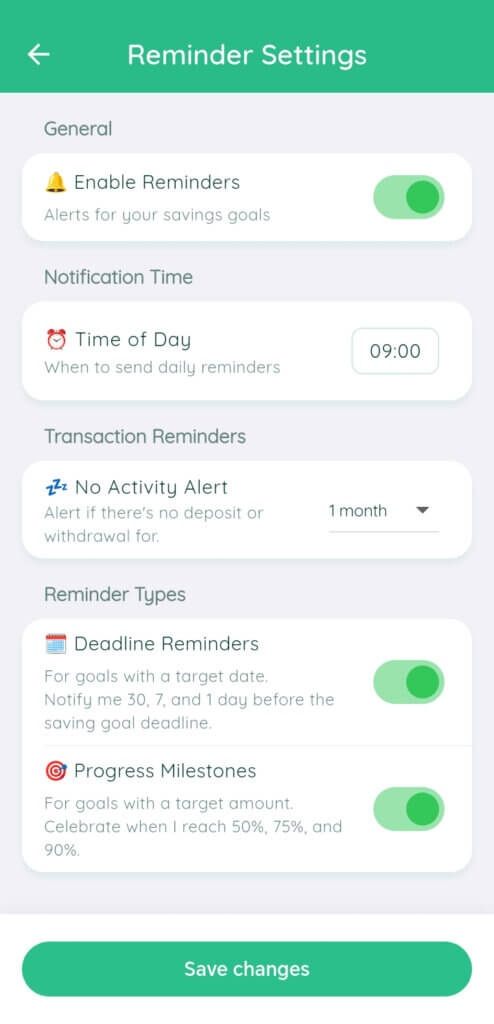
What each option does:
- Enable Reminders (Toggle Switch)
- Turns all savings goal reminders on or off.
- When switched on, you’ll receive notifications based on your settings below.
- Time of Day (09:00)
- Sets the time you want to receive daily reminders.
- Example: If set to 09:00, reminders will appear at 9 AM.
- No Activity Alert (Dropdown: 1 month)
- Sends an alert if you haven’t made any deposit or withdrawal for a set period.
- You can choose intervals like 1 week, 1 month, etc.
- Deadline Reminders (Toggle Switch)
- Sends notifications for goals with a target date.
- You’ll be reminded 30 days, 7 days, and 1 day before the deadline.
- Progress Milestones (Toggle Switch)
- Sends notifications when you reach 50%, 75%, and 90% of your target amount.
- Helps celebrate progress and keep you motivated.
- Save Changes button
- Applies all your settings.
- You must tap this button for changes to take effect.
Step-by-Step Guide
- Open the Reminder Settings screen from the app menu.
- Turn on “Enable Reminders” by sliding the switch to green.
- Set your preferred reminder time under “Time of Day” (e.g., 09:00 for morning reminders).
- Choose an inactivity alert period under “No Activity Alert” (e.g., 1 month).
- Decide which reminder types you want:
- Turn on Deadline Reminders if your goals have deadlines.
- Turn on Progress Milestones if your goals have target amounts.
- Tap “Save Changes” at the bottom to confirm your settings.
Helpful Tips & Warnings
If you have multiple goals, reminders apply to all of them based on their details (target amount, deadline).
If you don’t tap Save Changes, your new settings won’t be applied.
Turning off “Enable Reminders” will stop all notifications, even if other options are on.