
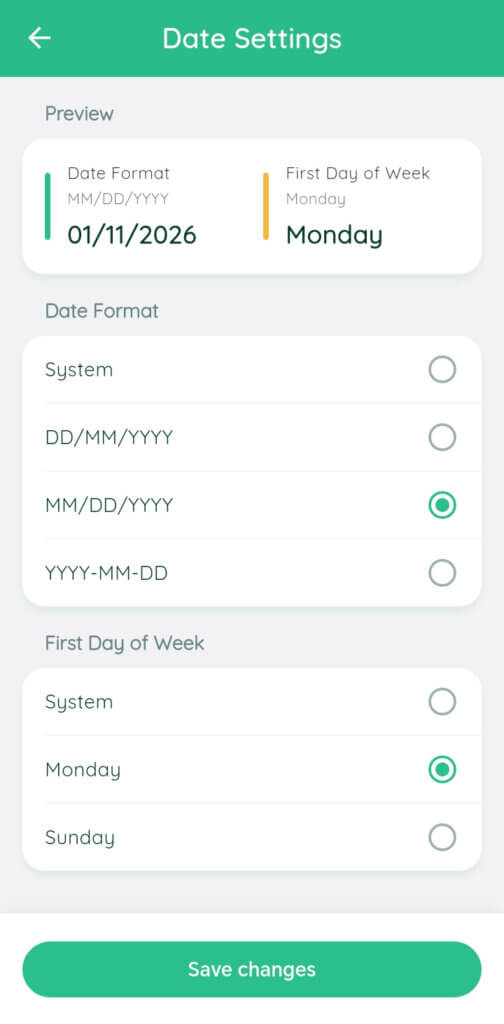
This Date Settings screen lets you customize how dates are displayed and choose the first day of the week in the app.
What each element does?
- Preview section (top): Shows an example of your current date format and first day of the week.
- Date Format options:
- System: Uses your device’s default date format.
- DD/MM/YYYY: Day first, then month, then year (e.g., 11/01/2026).
- MM/DD/YYYY: Month first, then day, then year (e.g., 01/11/2026).
- YYYY-MM-DD: Year first, then month, then day (e.g., 2026-01-11).
- First Day of Week options:
- System: Uses your device’s default first day of the week.
- Monday: Sets Monday as the start of the week.
- Sunday: Sets Sunday as the start of the week.
- Save changes button: Confirms and applies your selected settings.
Step-by-Step Guide
- Open the Date Settings screen.
- Check the Preview section to see your current settings.
- Choose your preferred date format:
- Tap one of the options under Date Format.
- The selected option will show a green circle.
- Choose your preferred first day of the week:
- Tap one of the options under First Day of Week.
- The selected option will show a green circle.
- Tap “Save changes” at the bottom to apply your settings.
Helpful Tips & Warnings
Use System if you want the app to match your device’s regional settings.
If you don’t tap Save changes, your selections won’t be applied.