
The Currency Settings screen allows you to control how currency amounts appear in the app, including symbols, positions, decimal points, and number formatting.
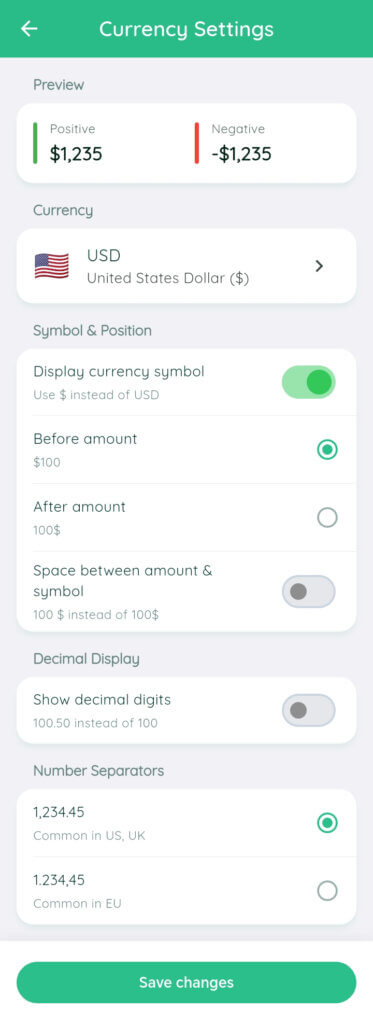
Sections and Options Explained
1. Preview
Shows examples of how positive and negative amounts will look based on your current settings.
2. Currency
Displays the selected currency (e.g., USD – United States Dollar).
Tap the arrow to choose a different currency.
3. Symbol & Position
- Display currency symbol: Toggle ON to show the symbol (e.g., $) instead of the currency code (USD).
- Before amount: Places the symbol before the number (e.g., $100).
- After amount: Places the symbol after the number (e.g., 100$).
- Space between amount & symbol: Adds a space (e.g., $ 100 instead of $100).
4. Decimal Display
- Show decimal digits: Toggle ON to display cents (e.g., 100.50 instead of 100).
5. Number Separators
Choose how thousands and decimals are separated:
- 1,234.45 (US/UK style) – Comma for thousands, dot for decimals.
- 1.234,45 (EU style) – Dot for thousands, comma for decimals.
6. Save Changes
Tap the green Save changes button to apply your settings.
How to Set Up Currency Display
- Review the Preview section to see your current format.
- Tap Currency if you need to select a different currency.
- Turn ON Display currency symbol if you want to use symbols like $ instead of codes like USD.
- Choose Before amount or After amount for symbol placement.
- Enable Space between amount & symbol for clearer formatting.
- Enable Show decimal digits if you want to display cents.
- Select your preferred Number Separators format (US/UK or EU style).
- Tap Save changes to confirm your settings.
Tips & Warnings
Use the Preview section to confirm your choices before saving.
Changes will not apply unless you tap Save changes.
Choose the correct separator style for your region to avoid confusion.